
Most AI tools still live inside a browser tab. You open them, ask a question, get an answer, and move on. OpenClaw feels different because it doesn’t really behave like an app. Once it’s set up, it sits in the background and waits for instructions, closer to a personal assistant than a chatbot.
That shift is what makes it interesting, and also why people get confused at first. Using OpenClaw is less about learning buttons and more about understanding how an agent works, what access it should have, and where it actually saves time in daily work. This guide walks through that process in a practical way, starting from the basics and moving toward real usage, without assuming you want to turn your setup into a science project on day one.
Learning OpenClaw Through Real Usage
One of the easiest ways to understand OpenClaw is not by looking at its architecture, but by looking at how people actually use it after setup. The moment it starts replacing small daily actions, the idea clicks. You stop opening apps and start sending instructions instead.
After setting up my own agent, I noticed something unexpected. I wasn’t using AI more often. I was just using fewer interfaces. Tasks that normally required switching between tools became simple messages.
That shift is what makes OpenClaw feel less like software and more like onboarding a digital assistant that gradually learns how you work.
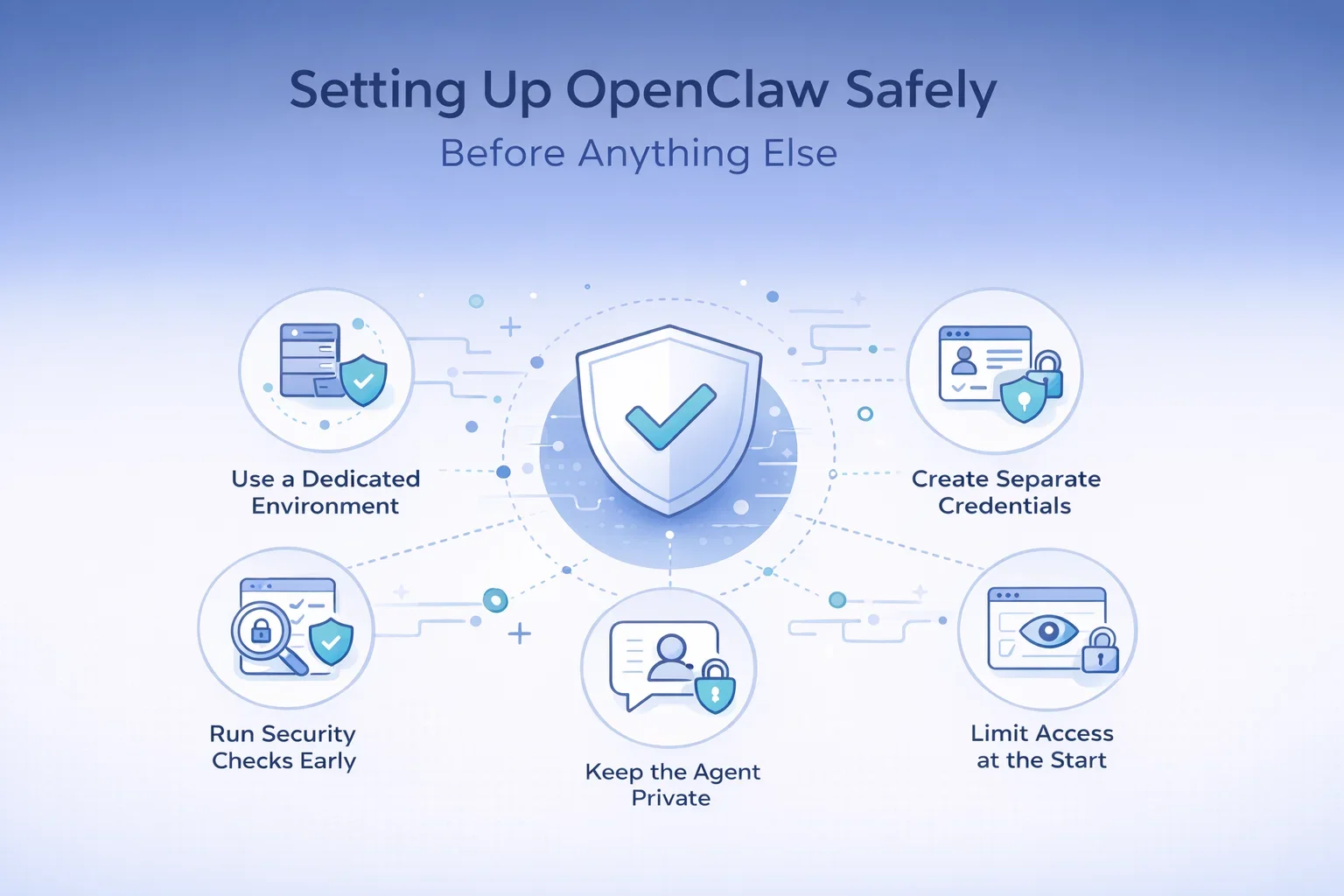
Setting Up OpenClaw Safely Before Anything Else
Before talking about use cases, safety comes first. OpenClaw can access files, accounts, and services, so setup decisions matter more than speed.
A few practical rules make the system much safer from the beginning.
Use a Dedicated Environment
Running the agent on a separate machine or environment keeps your main system isolated. Many users choose a small always-on device so the assistant remains available without interfering with daily work.
Create Separate Credentials
Giving the agent its own accounts reduces long-term risk. Instead of connecting personal email or cloud accounts directly, a dedicated identity allows better control over permissions and easier credential management later.
Run Security Checks Early
OpenClaw includes security audits for a reason. Running these checks early helps identify overly broad permissions or configuration risks before the system becomes deeply integrated into your workflow.
Limit Access at the Start
The safest approach is gradual access. Allow the agent to read information first, then selectively grant editing permissions where necessary. For example, calendar visibility with limited document editing is usually enough for early workflows.
Keep the Agent Private
Messaging access should remain personal. Avoid adding the assistant to group chats or public environments. Treat it as you would administrative access to your own systems.
Five Everyday Tasks That Show How OpenClaw Works
Once the setup is stable, real value comes from everyday automation. The following examples are common starting points because they solve real problems without requiring complex configuration.
1. Managing Calendar Events Without Opening Apps
Calendar management is often the first thing people delegate. Instead of navigating scheduling interfaces, you can simply send a message asking the agent to create or adjust events.
This sounds minor, but it removes constant context switching. Scheduling becomes conversational rather than procedural.
2. Editing Documents Through Conversation
OpenClaw can work with selected documents or spreadsheets that you explicitly share with it. Drafting outlines, updating cells, or preparing simple plans becomes a messaging task rather than a manual editing process.
The advantage here is speed. You stay in one flow instead of jumping between tools.
3. Adding Voice Responses for More Natural Interaction
Some users choose to add voice responses to make interaction feel less mechanical. Text-to-speech integrations allow the assistant to respond audibly, which makes quick updates or summaries easier to consume while multitasking.
This is not essential, but it shows how flexible the system can become once basic workflows are stable.
4. Daily Briefings That Run Automatically
Recurring tasks are where OpenClaw becomes genuinely useful. Scheduled automations can generate daily summaries that include weather, calendar events, priority tasks, or updates pulled from connected tools.
Because the agent maintains memory, these briefings can gradually become more personalized without repeated configuration.
5. Weekly Insight Reports and Automated Updates
Another common use case is periodic reporting. The agent can collect data from connected platforms and send summaries at scheduled times. This might include content performance, analytics snapshots, or operational updates.
The important part is consistency. Once configured, these reports happen automatically without reminders.
Why Messaging Changes the Experience
A subtle but important shift happens once OpenClaw becomes part of daily use. Messaging replaces navigation.
Instead of opening five tools to complete a task, you send one instruction. The assistant handles the rest in the background. This reduces friction more than adding new features ever could.
It also changes expectations. You begin to think in outcomes rather than steps. Instead of asking how to do something, you ask for the result you want.
Connecting OpenClaw to Google Workspace
For many people, the real turning point is connecting OpenClaw to tools they already use every day. Google Workspace is a common example because it centralizes calendars, documents, and communication.
Once connected properly, the assistant can:
- Read calendar availability
- Create or edit documents you approve
- Summarize information across files
- Automate recurring updates
The setup itself can feel technical at first, especially when configuring permissions. Taking time here is worth it. Clear permissions prevent confusion later and keep automation predictable.
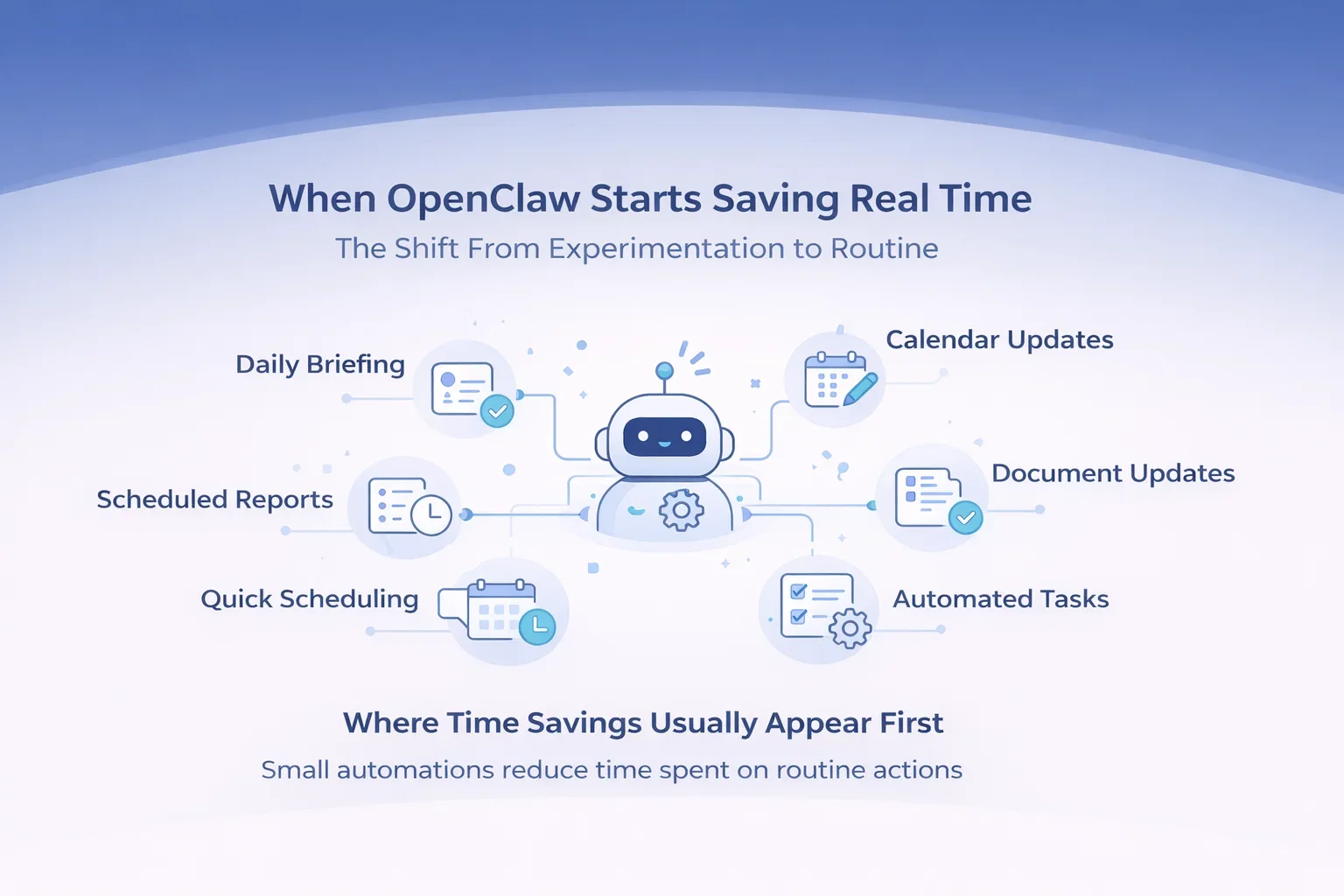
When OpenClaw Starts Saving Real Time
The Shift From Experimentation to Routine
The first few days with OpenClaw often feel experimental. You test commands, adjust permissions, and wonder whether the effort is worth it. The real value usually appears later, once small automations begin stacking on top of each other.
Instead of one big improvement, you get dozens of small ones. A morning summary replaces several checks across apps. Weekly reports arrive without reminders. Scheduling stops interrupting focused work. None of these changes are dramatic on their own, but together they reduce the constant switching that slows most digital work down.
Where Time Savings Usually Appear First
You usually start noticing time savings in moments like these:
- checking one daily briefing instead of opening multiple apps
- receiving scheduled reports without remembering to generate them
- creating calendar events through a quick message instead of navigating menus
- updating documents or spreadsheets without switching contexts
- getting summaries prepared before meetings or work sessions
- running recurring tasks automatically at fixed times
When the Assistant Starts Feeling Natural
This is also when the assistant starts to feel less like software. Because memory carries context forward, you stop repeating instructions. The system adapts to how information is structured and how updates are delivered. At that point, interaction becomes lighter. You ask for outcomes rather than describing steps.
That is usually the moment people realize they are using OpenClaw differently from other AI tools. It moves from something you try occasionally to something quietly running in the background, handling the parts of work that do not need attention anymore.

Building AI Solutions Beyond Personal Automation with AI Superior
While tools like OpenClaw show how powerful AI can be at an individual level, many organizations eventually reach a point where they need something more structured and scalable. This is where we come in at AI Superior. We focus on helping businesses move from experimentation to real implementation by designing and building AI solutions that fit into existing processes instead of disrupting them.
We work closely with companies to understand where AI can genuinely create value, whether that means developing custom AI software, building machine learning models, or integrating AI into current systems. Our team combines research experience with practical engineering, so projects move from idea to working solution through clear stages, starting with discovery and MVP validation and continuing through scaling and integration.
For us, successful AI adoption is not about adding complexity. It is about making systems more useful, more efficient, and easier to operate over time. Whether a company is exploring AI for the first time or expanding existing capabilities, our goal is to make AI understandable, reliable, and aligned with real business outcomes rather than technical trends.
Conclusion
OpenClaw makes more sense over time than it does on day one. Once a few routines begin running automatically, the value comes from removing small interruptions rather than adding new features. It becomes less about using AI actively and more about letting routine work happen in the background.
The key is starting small, keeping permissions controlled, and expanding gradually. Used this way, OpenClaw turns into a practical layer between you and your tools, helping work move forward with less friction while keeping you in control of the outcome.
FAQ
What is OpenClaw used for?
OpenClaw is used as a personal AI assistant that can automate tasks, interact with tools, and execute workflows through messaging or local interaction. Common uses include scheduling, document updates, recurring reports, summaries, and workflow automation across connected services.
Does OpenClaw run locally or in the cloud?
OpenClaw is designed to run locally on your machine or on infrastructure you control. While it connects to external AI models through APIs, execution and configuration remain under the user’s control.
Do I need programming skills to use OpenClaw?
Basic technical comfort helps, especially during setup. You do not need to be a developer, but understanding permissions, integrations, and configuration steps makes the experience smoother. Advanced customization may require technical knowledge.
Is OpenClaw safe to use?
OpenClaw can be safe when configured properly. The key is limiting permissions, using dedicated accounts, running security audits, and only enabling integrations you actually need. Because the agent can execute actions, careful setup is important.
How is OpenClaw different from AI chat assistants?
Traditional AI assistants respond to prompts within a session. OpenClaw operates as a persistent agent that can remember context, run tasks automatically, and interact with tools over time. It focuses on execution rather than conversation alone.
 English
  German
  Arabic
  French
  Dutch
Dutch  Spanish